 Friday, August 28, 2026

Zhono Guide: Common Codes and Solutions for Lexmark Printers
1.Prompt Code: [42.XXX]
Cause
Region Mismatch: The printer cannot recognize the chip because the chip’s region and the printer’s region do not match, resulting in error code [42.XXX].
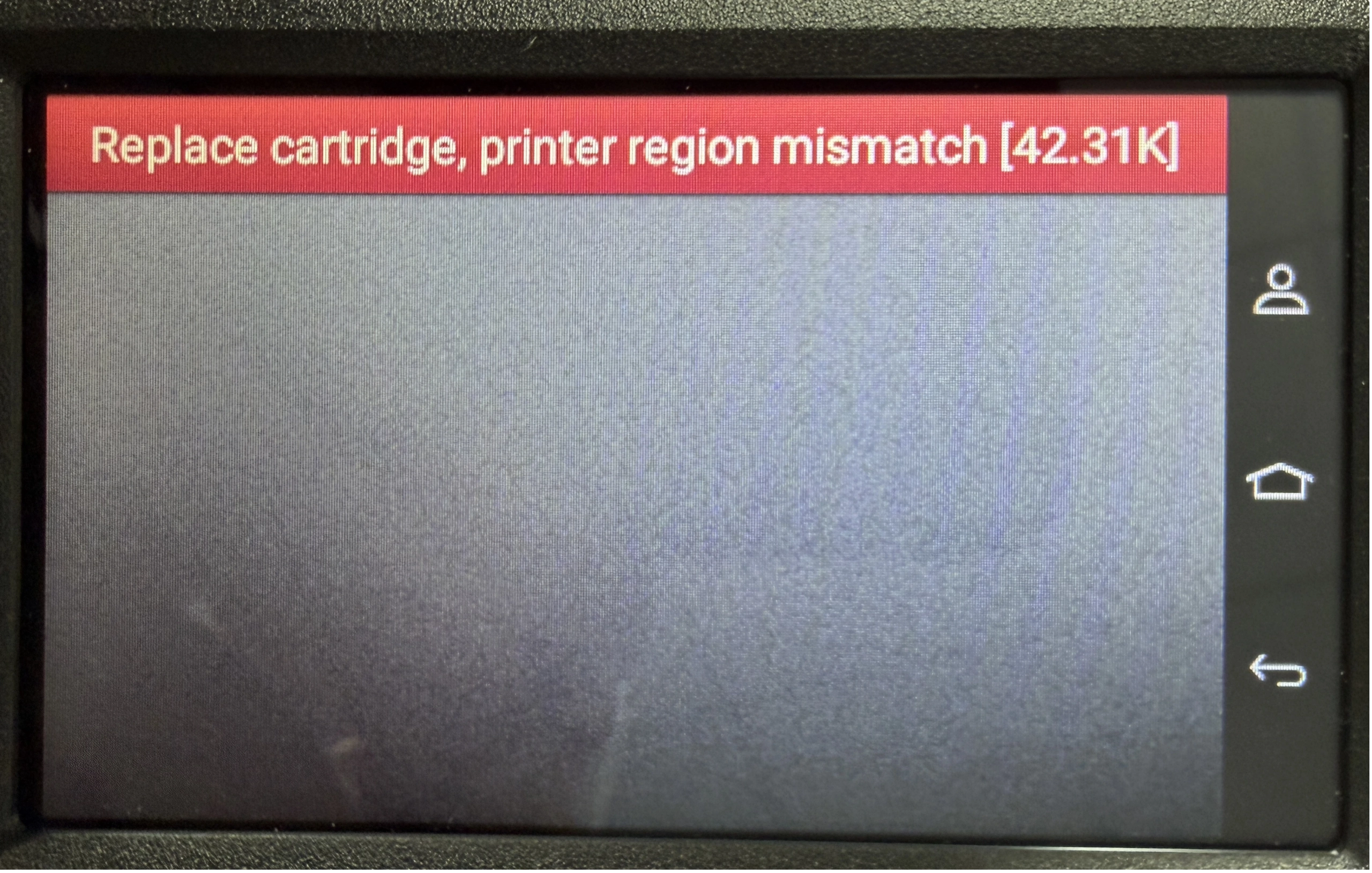
Figure 1: Code [42.XXX]
Solution
Step 1: On the Settings page tap [Troubleshooting], then tap [Print Quality Test Pages].
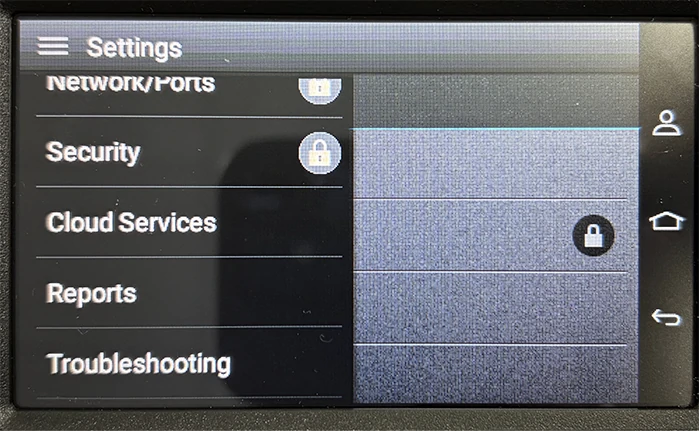
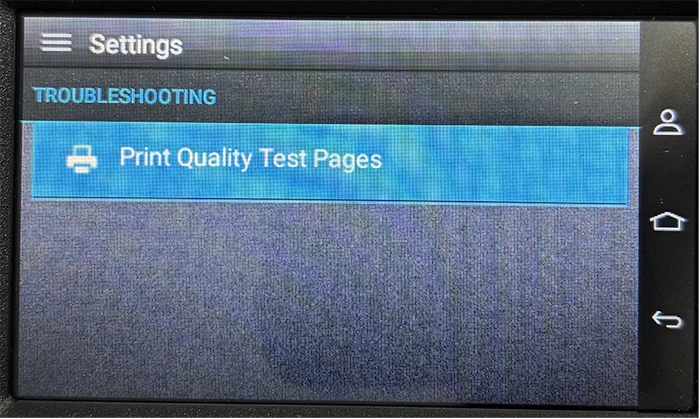
Figure 2: Settings Page
Step 2: Under [Cartridge Information], locate [Printer Region] to check the printer’s region code.
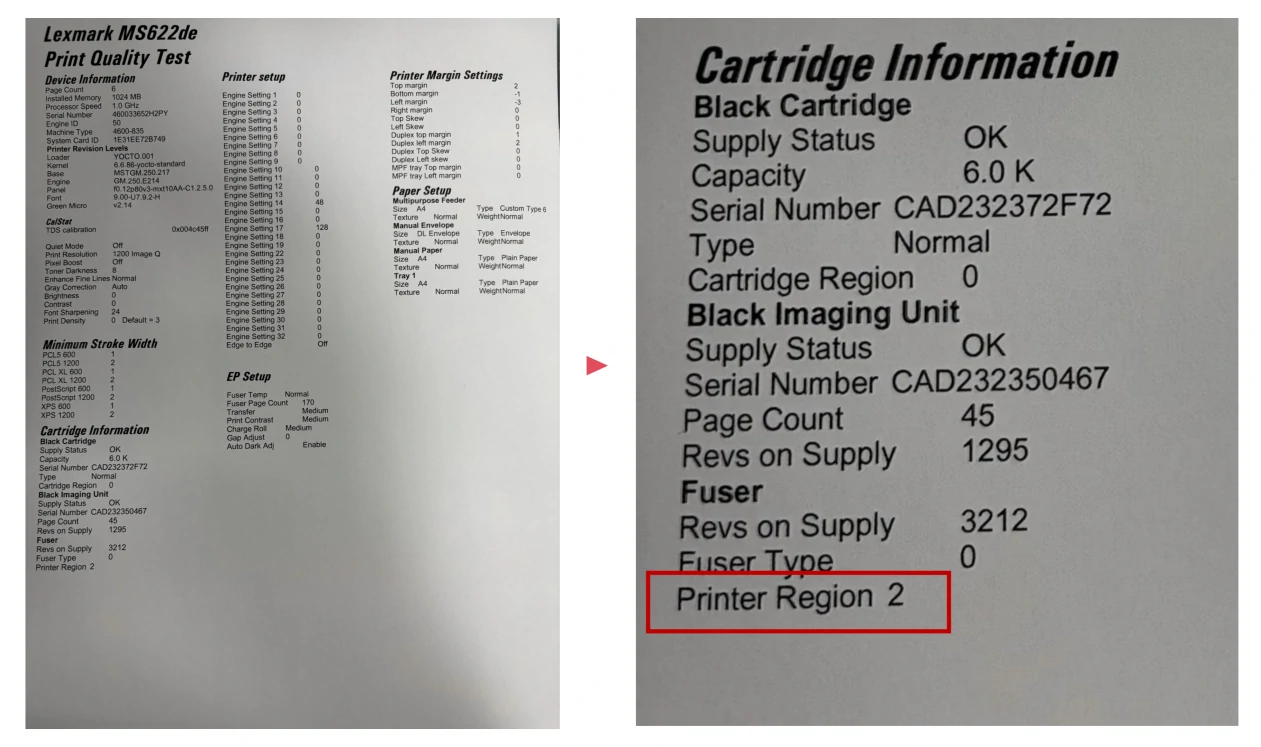
Figure 3: Quality Test Page
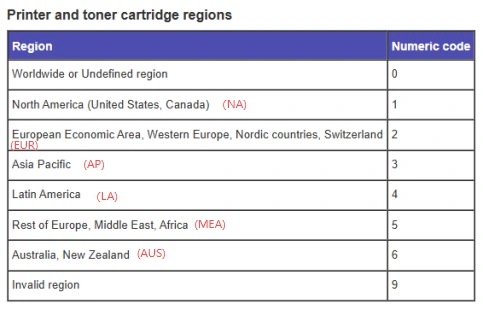
The following table lists the regions and their corresponding codes. Refer to the table to replace the chip with the correct regional version.
2.Code: [32.40X]
Cause
The prompt “Replace Unsupported Cartridge [32.40X]” is usually caused by:
- Incorrect Cartridge Model
The installed cartridge is from a different series, or a high-yield cartridge has been installed that is not supported by the current printer model.
- Poor Chip Contact
Dust, oxidation, deformation, or misalignment of the chip or the printer’s internal contacts have caused a communication failure.
- Cartridge Disabled [32.40E]
The OEM cartridge has been flagged by the system as invalid, expired, or unauthorized.
- Improper Installation [32.40Z]
The cartridge is not fully seated, the front cover is not securely closed, or the cover sensor is malfunctioning.
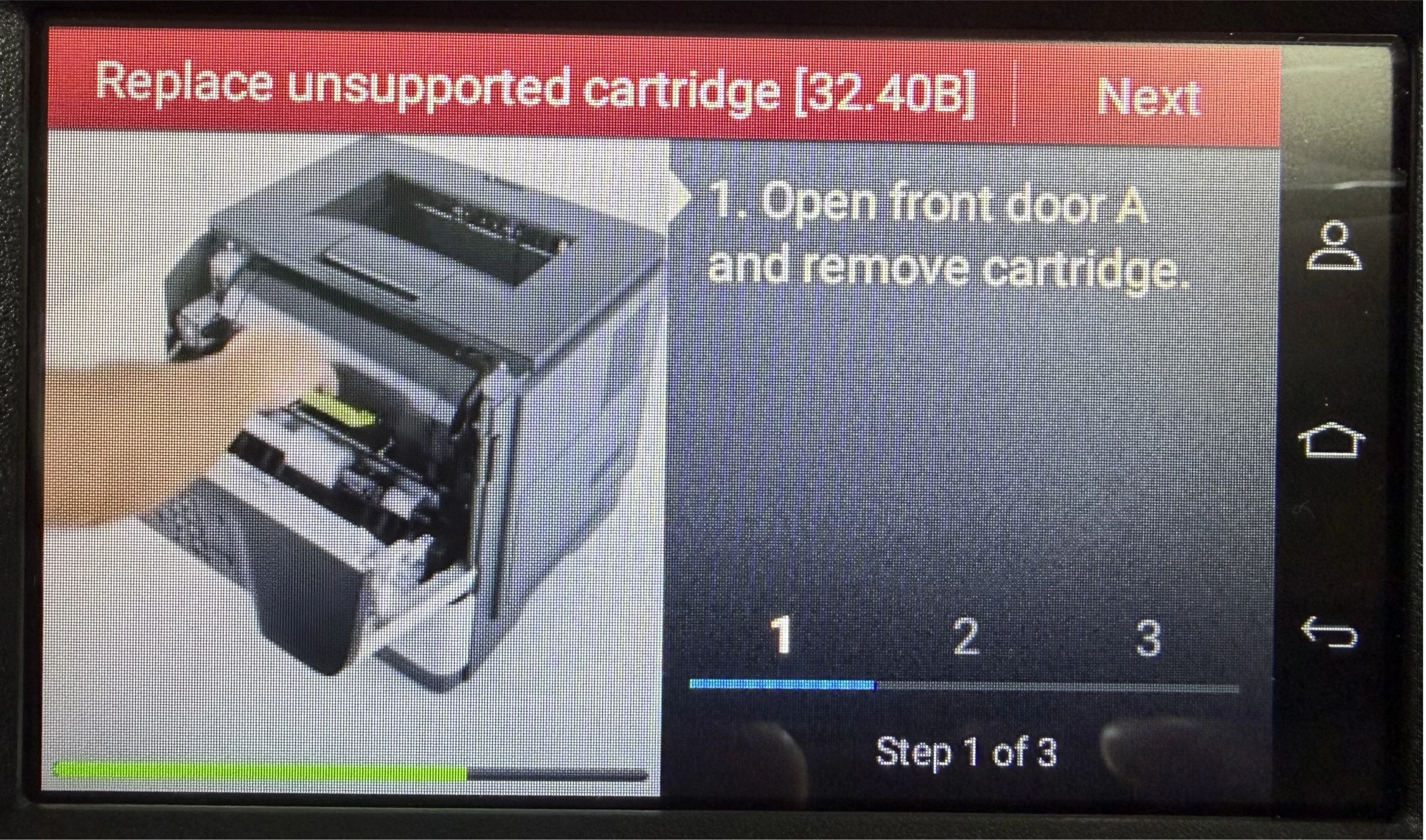
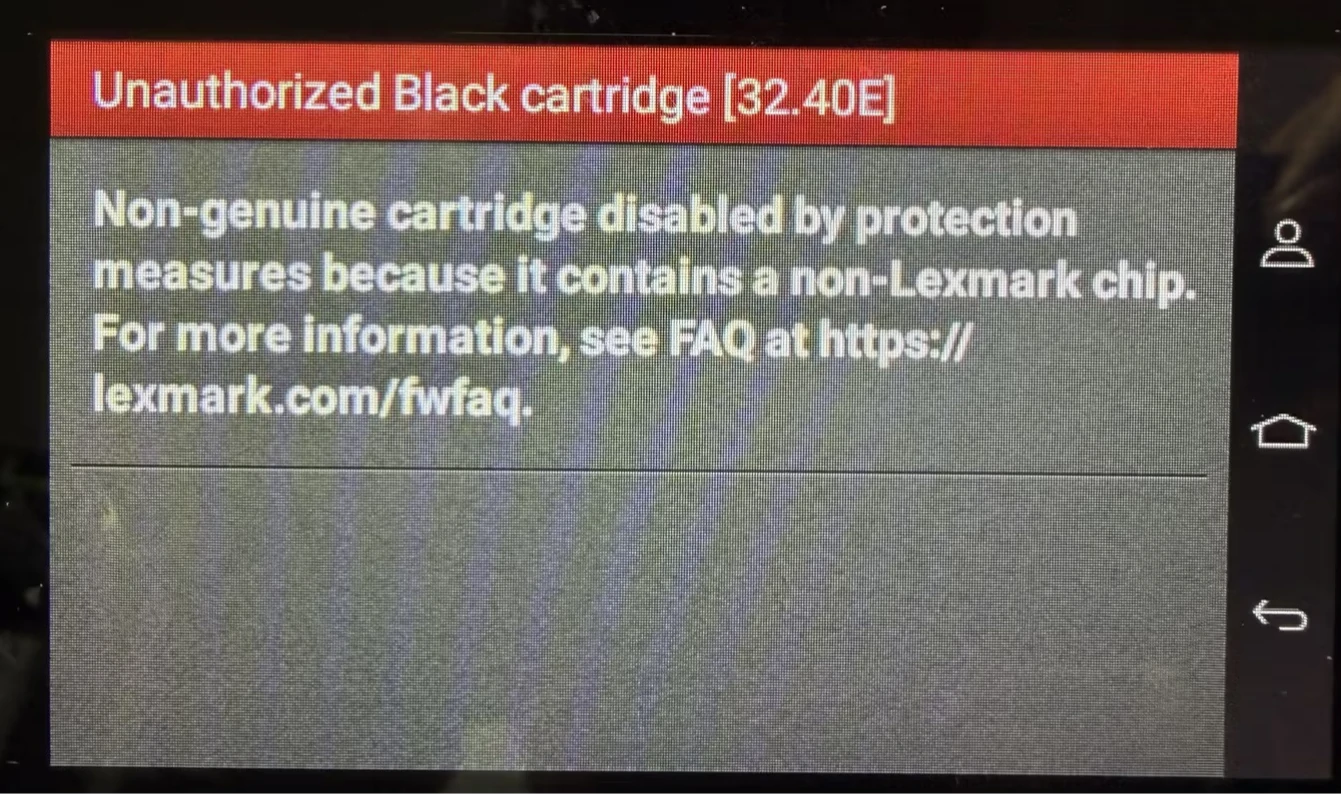
Figure 4: Code [32.40X]
Solution
Step 1: Ensure the cartridge model matches the printer, including both the model number and yield.
Step 2: Check and clean the chip and the printer’s internal contacts. Ensure there is no dirt, oxidation, or deformation. Reinstall the cartridge securely and ensure the front cover is properly closed.
Step3: If the [32.40E] error persists or the problem continues, the cartridge may need to be replaced with a new OEM one.
3. Code: [31.40X]
Cause
The prompt “Re-install missing or unresponsive cartridge [31.40X]” is usually caused by a missing or unresponsive cartridge. This may result from poor contact due to damage to the cartridge components or the chip.
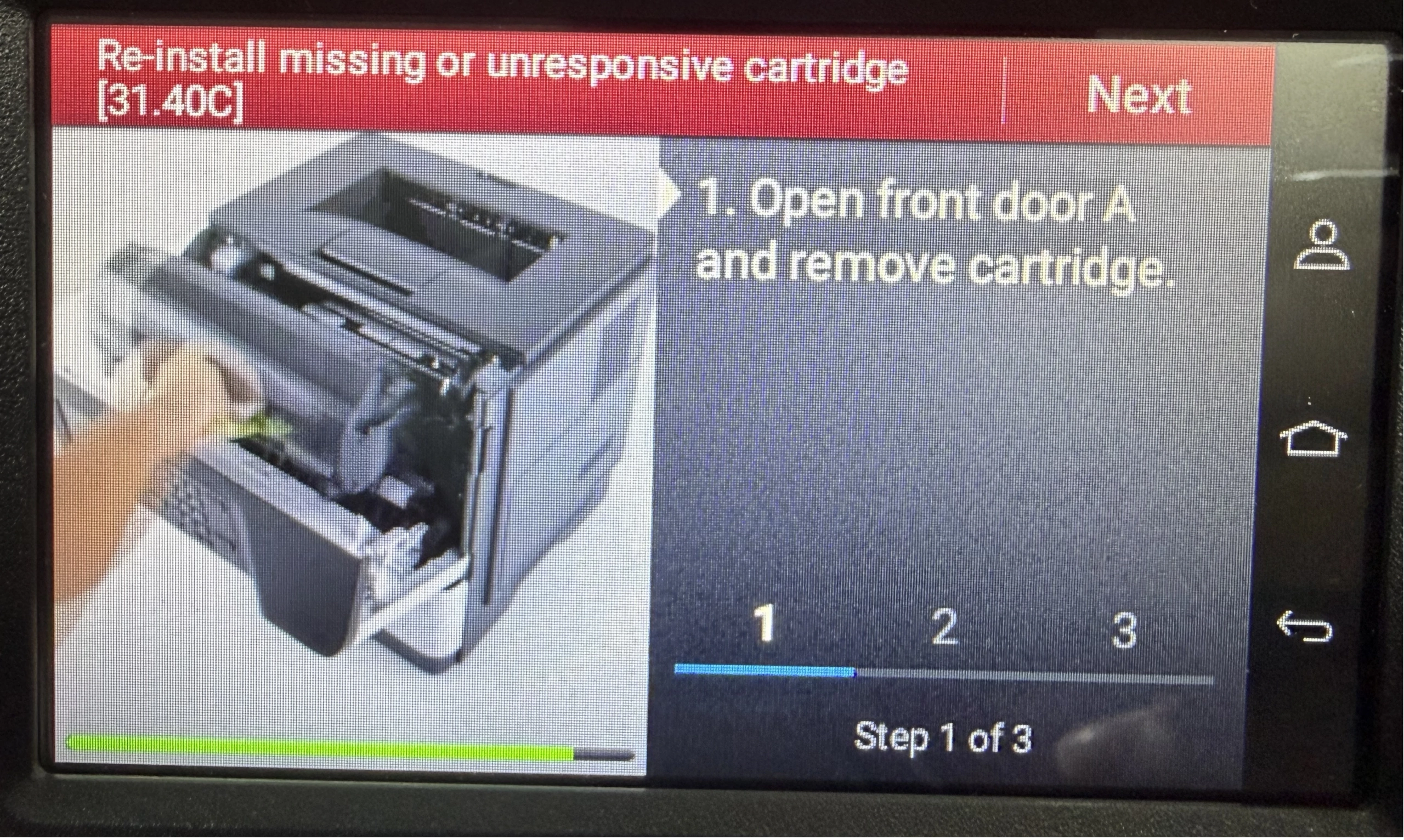
Figure 5: Code [31.40C]
Solution
Test the chip by installing it on an OEM cartridge.
- If the chip is recognized on the OEM cartridge:
The issue may be caused by a physical compatibility problem with the cartridge. Inspect the cartridge shell for defects or replace the unit.
- If the chip is not recognized on the OEM cartridge:
The chip itself is likely damaged and should be replaced.
4. Code: [88.XXX]
Cause
The prompt “Replace black cartridge, 0 pages remain. [88.XXX]” is usually caused by:
- Chip End-of-Life
The prompt appears when the chip has reached the end of its service life and needs to be replaced.
- Continuous Toner Shortage
The prompt may also appear when the printer detects a persistent toner shortage. This can be caused by poor toner flow, a clogged toner delivery path, or an empty cartridge.
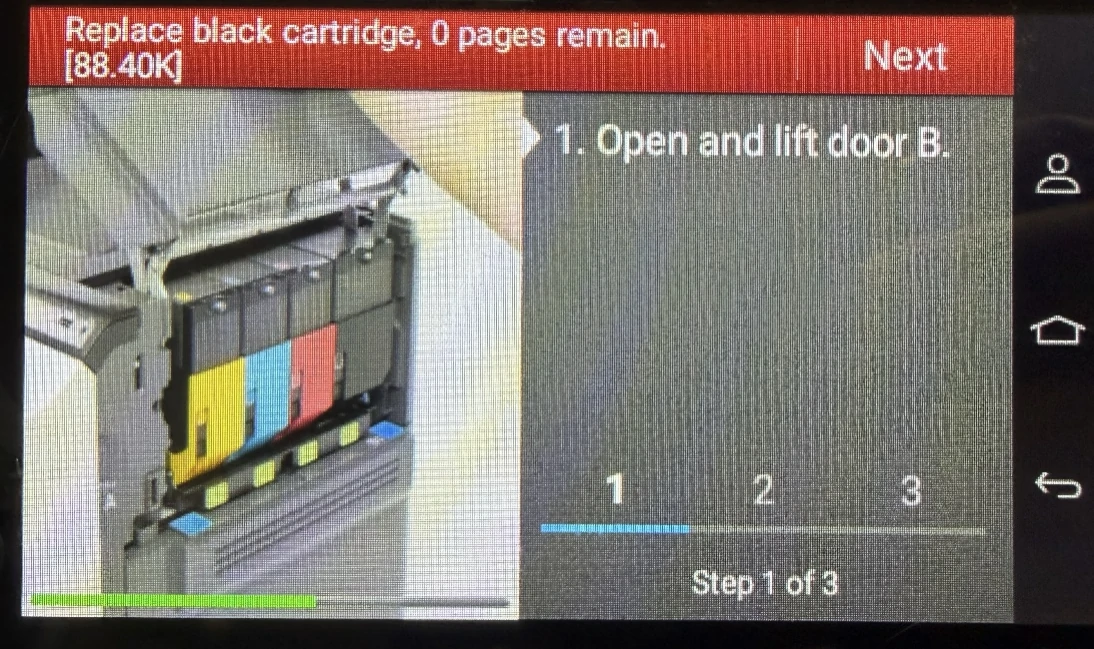
Figure 6: Code [88.40K]
Solution
Step 1: Remove the cartridge, gently shake it several times, then reinstall it and restart the printer.
Step 2: Check whether there is sufficient toner remaining in the cartridge.
Step 3: If there is sufficient toner present but the code persists, inspect and clean the toner delivery path to ensure there are no toner clumps or blockages.
After completing the above steps, replace the cartridge chip with a new one.
Summary
| Code | Root Cause | Key Solution |
| 42.XXX | Chip region mismatch | Identify the printer’s region and replace with the corresponding chip. |
| 32.40X | Incompatible toner cartridge | Replace the chip or the cartridge. |
| 31.40X | Poor chip contact | Test the chip using an OEM cartridge. |
| 88.XXX | Chip life exhausted or toner supply issue | Check the remaining toner level and replace the cartridge chip. |
When troubleshooting, use the full prompt to identify the root cause and apply the corresponding solution.
Please follow Zhono and subscribe on LinkedIn or Facebook. For more information, please contact your sales representative or send an email to info@zhono.com.
Related:
- Zhono Released 13 Compatible Chips in April
- Zhono Chips Confirmed Compatible with Firmware Upgrades from Multiple Brands in March
- Zhono’s Guide for Kyocera TK8465 Series Printers: Maintenance Mode & Common Code
- First to Market | Zhono Released Compatible Chips for the Xerox B105 Series
- Zhono Chips Confirmed Compatible with Firmware Upgrades from Multiple Brands in February
Comment:
Please leave your comment below about the news: Zhono Guide: Common Codes and Solutions for Lexmark Printers.





Leave a Comment
Want to join the discussion?Feel free to contribute!