 Wednesday, February 4, 2026
Zhono Provides Tips on Using Kyocera TK-1110 Series Supplies
Zhono Provides Tips on Using Kyocera TK-1110 Series Supplies
Background
Some customers have reported issues when using Kyocera TK-1110 series supplies, including toner refill prompts, reduced chip level, blocked toner flow, or compatible chip installation.
For these customers, Zhono provided an official guide with four tips to address these issues.
#1: Toner Refill
Unlike other printers, Kyocera TK-1110 series printers require toner blended with a carrier when refilling empty cartridges. Adding toner without carrier triggers “[Replace Toner]” or “[Please Wait. Adding Toner…]” prompts when reinstalling cartridges (see Figures 1 and 2).
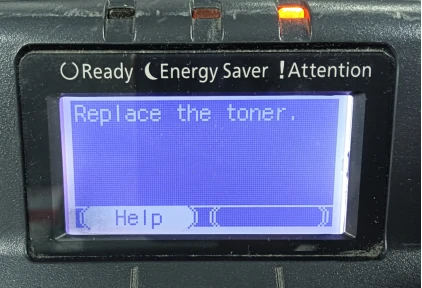
Figure 1
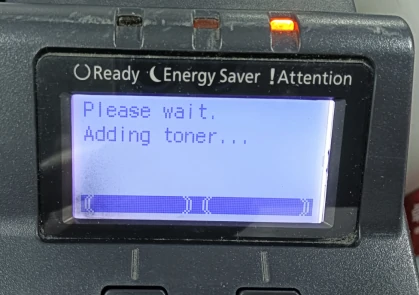
Figure 2
#2: Reduced Chip Level
With Kyocera TK-11XX printers, the chip level reduces to 6% or 11% after warm-up when a new cartridge is installed (see Figure 3). Despite this, printing will continue normally until the toner runs out.
Models include: TK-1110/1112/1113/1114/1115/1119/1120/1122/1123/1124/1125/1129
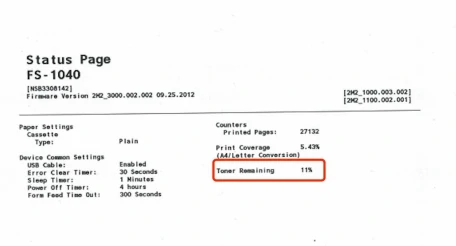
Figure 3
Note: Kyocera printers collect information including printed pages, print coverage, and remaining toner which is stored in the cartridge chip. The printer updates and displays the current supply levels based on this data. Therefore, the reduced chip level is related to the printer’s consumable monitoring mechanism, not a chip defect.
#3: Blocked Toner Flow
In Kyocera TK-31XX series printers, the gear on the side of the toner cartridge must engage correctly with the locking tab of the drum unit (see Figures 4 and 5). Misalignment can block toner flow, resulting in an early [Toner Low] warning during printing.
Models include:
TK-3100 / 3101 / 3102 / 3103 / 3104 / 3110 / 3112 / 3114 / 3114K / 3120 / 3121 / 3122 / 3130 / 3133 / 3134 / 3134K / 3150 / 3152
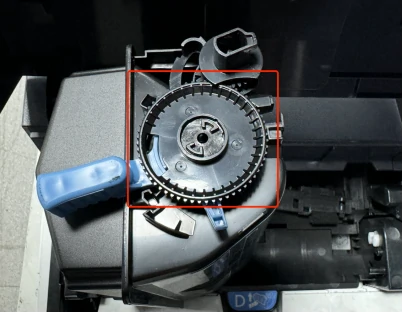
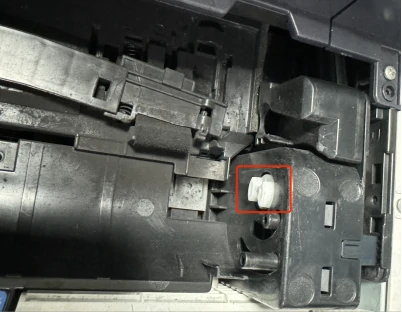
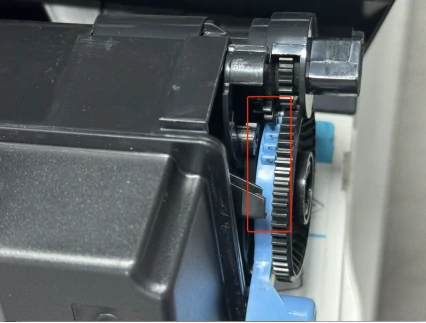
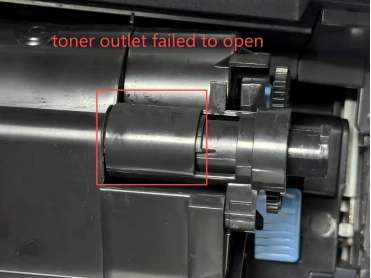
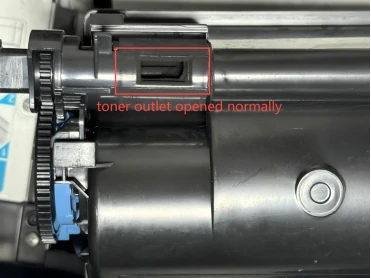
Figure 4-8
Note: If the blue gear on the side of the toner cartridge is damaged (see location in Figure 6), the toner outlet will fail to open properly (see Figures 7 and 8). This will also cause early [Toner Low] warning during printing.
#4: Compatible Chip Installation
Removing the OEM chip from an OEM toner cartridge can damage the chip slot. To avoid this, use a double-sided tape to secure the compatible chip.
Note: Please refer to the correct installation method shown in Figure 9 when securing the chip with double-sided tape. Ensure the double-sided tape does not connect with the printer’s internal contacts. Incorrect tape placement, as shown in Figure 10, may cause the adhesive to adhere to the printer’s internal contacts, leading to poor chip connection. This applies to all Kyocera TK-1110 series printers.
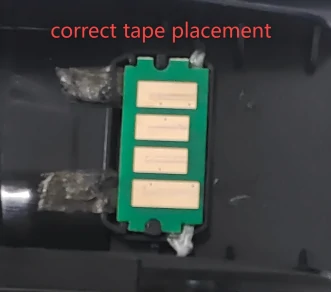
Figure 9
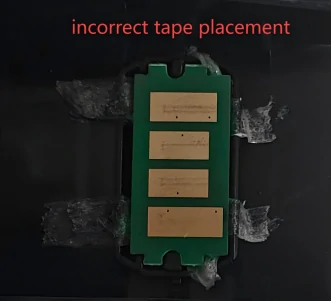
Figure 10
Compatible Chip
Zhono released compatible chips for the Kyocera TK1110 Series. For more information, please contact your sales representative or send an email to info@zhono.com.

Related:
- Zhono Releases First-to-Market Chips for Fujifilm Apeos C8180
- Zhono Released 10 New Compatible Chips in July
- Zhono Provides Official Guide for 10-Second Chip Update
- Zhono Concludes 5 Chip Launches in June
- Zhono Launches Progeasy Update Device
Comment:
Please leave your comment below about the news: Zhono Provides Tips on Using Kyocera TK-1110 Series Supplies.





Leave a Comment
Want to join the discussion?Feel free to contribute!